We create custom User Profile properties quite often in SharePoint. User Profile properties are created easily in Central Administration web site however while developing large enterprise solutions, direct access to production servers are not usually available to developers. To achieve such goals, we usually develop console applications which runs during deployment script or develop features which execute code during feature activation. User Profile properties can be created in SharePoint development environment using Microsoft.Office.Server.UserProfiles namespace. A simple XML file containing details of required custom properties can be used as input. Here is sample XML which I created for this example.
<Properties Server="http://flhsrv116" TermStore="Managed Metadata Service Application Proxy">
<Property>
<Name>Audience</Name>
<DisplayName>Audience</DisplayName>
<!-- Collection of Values for Type Node : (big integer | binary | boolean | date | date no year | date time | Email | float | unique identifier | HTML | integer | Person | string | string (Single Value) | string (Multi Value) | Time Zone | URL)  -->
<Type>string (Multi Value)</Type>
<!-- IsMultiValue : Possible Options true | false :  Note = Only true when Type = String (Multi Value) -->
<IsMultiValue>true</IsMultiValue>
<TermStoreGroup>DSG</TermStoreGroup>
<TermSet>Audiences</TermSet>
</Property>

<Property>
<Name>DateofJoining</Name>
<DisplayName>Date of Joining</DisplayName>
<!-- Collection of Values for Type Node : (big integer | binary | boolean | date | date no year | date time | Email | float | unique identifier | HTML | integer | Person | string | string (Single Value) | string (Multi Value) | Time Zone | URL)  -->
<Type>date</Type>
<!-- IsMultiValue : Possible Options true | false -->
<IsMultiValue>false</IsMultiValue>
<TermStoreGroup>null</TermStoreGroup>
<TermSet>null</TermSet>
</Property>
</Properties>
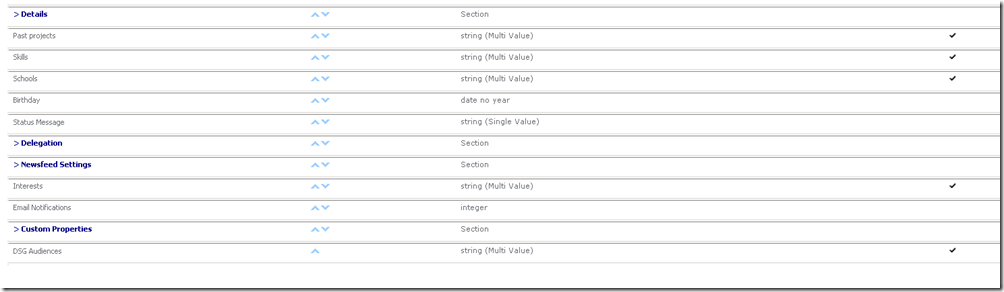
In this simple example, I am creating two properties. One is of date type and second is of term set type. This XML file has a root node with two attributes and two child nodes. Each child node represent a custom property. Property’s name, display name, type and other properties can be configured as mentioned above. At the moment, we have only one custom property of term set type in User Profile store.
To do this, create a console application in Visual Studio 2010.
Add references of System.Xml, Microsoft.Office.Server.UserProfiles, Microsoft.SharePoint and Microsoft.SharePoint.Taxonomy if term set type value is required to create.
Add this code in .cs file.
using System;
using Microsoft.Office.Server.UserProfiles;
using Microsoft.SharePoint;
using Microsoft.SharePoint.Taxonomy;
using System.Xml;
using System.Collections;

namespace UserProfilesOMApp
{
class Program
{
static void Main(string[] args)
{
string str = "UserProfileProperties.xml";

// Reading XML document.

XmlDocument doc = new XmlDocument();
doc.Load(str);

// Reading Parent node of document.
XmlNode xmlNode = doc.DocumentElement;
XmlNodeList propertiesxmlnodeList = doc.GetElementsByTagName("Properties");

// Reading Attributes for parent node.
XmlElement xmlElement = (XmlElement)propertiesxmlnodeList.Item(0);

string servername = xmlElement.GetAttribute("Server");
string termstore = xmlElement.GetAttribute("TermStore");

// Reading property node and its Child node lists.
XmlNodeList propertyxmlnodeList = doc.GetElementsByTagName("Property");
XmlNodeList namelist = doc.GetElementsByTagName("Name");
XmlNodeList displaynamelist = doc.GetElementsByTagName("DisplayName");
XmlNodeList typelist = doc.GetElementsByTagName("Type");
XmlNodeList ismultivaluelist = doc.GetElementsByTagName("IsMultiValue");
XmlNodeList termsetlist = doc.GetElementsByTagName("TermSet");
XmlNodeList termstoregrouplist = doc.GetElementsByTagName("TermStoreGroup");


string propertyname = null;
string displayname = null;
string type = null;
string ismultivalue = null;
string termstoregroup = null;
string termset = null;

using (SPSite site = new SPSite(servername))
{

for(int x = 0; x < propertyxmlnodeList.Count; x++)
{

propertyname = namelist.Item(x).InnerText.ToString();
displayname = displaynamelist.Item(x).InnerText.ToString();
type = typelist.Item(x).InnerText.ToString();
ismultivalue = ismultivaluelist.Item(x).InnerText.ToString();
termstoregroup = termstoregrouplist.Item(x).InnerText.ToString();
termset = termsetlist.Item(x).InnerText.ToString();

// Method call for creating a user profile property.
Program.createProfileProperties(site, termstore, propertyname, displayname, type, ismultivalue, termstoregroup, termset);
}
}
}

static void createProfileProperties(SPSite site, string termstore, string propertyname, string displayname, string type, string ismultivalue, string termstoregroup, string termset)
{

SPServiceContext context = SPServiceContext.GetContext(site);
UserProfileConfigManager upcm = new UserProfileConfigManager(context);

try
{
ProfilePropertyManager ppm = upcm.ProfilePropertyManager;
Console.WriteLine("Creating Propoerty");
// Create core property.
CorePropertyManager cpm = ppm.GetCoreProperties();
CoreProperty coreproperty = cpm.GetPropertyByName(propertyname);

// Check if property already exists.
if (coreproperty != null)
{
Console.WriteLine("Property already exists......");
return;
}

CoreProperty cp = cpm.Create(false);
cp.Name = propertyname;
cp.DisplayName = displayname;
//Get Property Type from Enumeration.
PropertyDataTypeCollection pdtc = upcm.GetPropertyDataTypes();
PropertyDataType ptype = null;
IEnumerator enumType = pdtc.GetEnumerator();
while (enumType.MoveNext())
{
ptype = (PropertyDataType)enumType.Current;
if (ptype.Name.ToString().ToLower().Equals(type.ToString().ToLower())) break;
}

cp.Type = ptype.Name;

if(type.ToLower() == "string (Multi Value)".ToLower())
{
cp.IsMultivalued = Convert.ToBoolean(ismultivalue);
if (ismultivalue.ToLower() == "true".ToLower())
{
cp.Separator = MultiValueSeparator.Semicolon;
}

// Set the TermSet.
TaxonomySession taxonomySession = new TaxonomySession(site);
TermStore termStore = taxonomySession.TermStores[termstore];
Group group = termStore.Groups[termstoregroup];
TermSet termSet = group.TermSets[termset];

cp.TermSet = termSet;
}

cpm.Add(cp);

// Create profile type property.
ProfileTypePropertyManager ptpm = ppm.GetProfileTypeProperties(ProfileType.User);
ProfileTypeProperty ptp = ptpm.Create(cp);
ptp.IsVisibleOnViewer = true;
ptp.IsVisibleOnEditor = true;

ptpm.Add(ptp);

// Create profile subtype property.
ProfileSubtypeManager psm = ProfileSubtypeManager.Get(context);
ProfileSubtype ps = psm.GetProfileSubtype(ProfileSubtypeManager.GetDefaultProfileName(ProfileType.User));

ProfileSubtypePropertyManager pspm = ps.Properties;

ProfileSubtypeProperty psp = pspm.Create(ptp);

psp.PrivacyPolicy = PrivacyPolicy.OptIn;
psp.DefaultPrivacy = Privacy.NotSet;


pspm.Add(psp);

Console.WriteLine("\nuser profile property "+ displayname + " created successfully.\n");
Console.ReadKey();
}
catch (DuplicateEntryException e)
{
Console.WriteLine(e.Message);
Console.Read();
}
catch (System.Exception e2)
{
Console.WriteLine(e2.Message);
Console.Read();
}
}
}
}
After running this code, this output will come.

Now, in User Profile store, two custom properties has been added.
 Download
project solution as zip file.