Wednesday, November 26, 2014

Stop forcefully SharePoint Search Crawl through PowerShell

Sometime, it happens that we want to stop search crawl but from Central Administration Site, Stop Crawl link doesn’t work. To stop Search Crawl forcefully in SharePoint, we can use this script.

Get-SPEnterpriseSearchCrawlContentSource -SearchApplication "Search Service Application" | ForEach-Object {
    if ($_.CrawlStatus -ne "Idle")
    {
        Write-Host "Stopping : Crawl is currently running for content source $($_.Name)..."
        $_.StopCrawl()
    }
}

Wednesday, November 19, 2014

DateTime picker issue in Nintex Forms

While customizing SharePoint Forms using Nintex Forms, we found that DateTime control in not displaying date in correct manner and form cannot be submitted if DateTime column is a mandatory field. Digits for month were being displayed twice.

1

After doing some search and a after a discussion with my good friend Vahid Taslimi who is Product Manager at Nintex, we started looking into locale and regional settings of SharePoint as it could be potential cause of this issue. We found that their is a conflict between locale settings of OS and locale settings of SharePoint site. When we opened regional settings of the site, we found that locale for the site is English (United States).

2

When we changed Locale from English (United States) to Arabic (U.A.E), issues with DateTime control was not there.

3

Here is the form after this change.

4

Sunday, November 16, 2014

Contents of emails disappeared in Nintex Workflows after SharePoint 2013 SP1 installation

After installing Service Pack 1 for SharePoint 2013, I found an issue with all workflows developed using Nintex Workflows 2013. For some reason, body of email notifications was not visible and it seems contents have been deleted.

image

Nintex Workflows 2013 was installed in June 2014 and that build is not compatible with SP1 for SharePoint 2013. After installing the latest build, issue got resolved and all text for emails are visible as earlier.

image

Monday, May 26, 2014

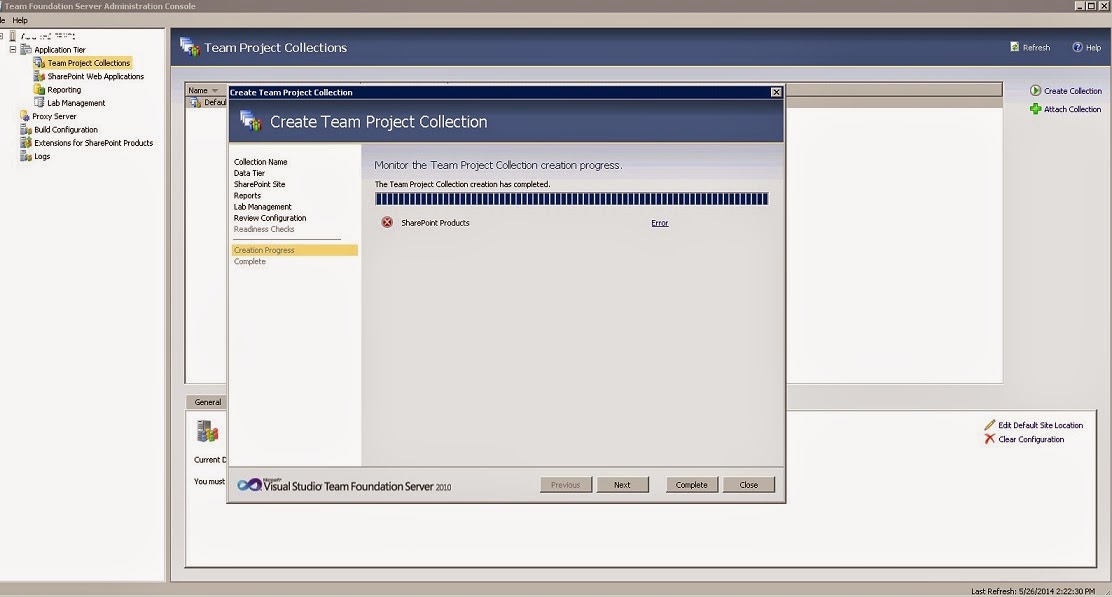
TF250001: The validation check failed for the following account: NT AUTHORITY\NETWORK SERVICE


While creating new Team Project Collection in Team Foundation Server, if you receive error for SharePoint, make sure that you have added NT AUTHORITY\NETWORK SERVICE as farm administrator in your SharePoint central administration site for Team Foundation Server.

I got this error.

"[Error] TF252031: A SharePoint site could not be created for the team project collection. The following error occurred: TF250001: The validation check failed for the following account: NT AUTHORITY\NETWORK SERVICE. The account must be a member of the Farm Administrators group for the following SharePoint Web application: http://test-tfs-srv01:9000/. For more information, see the Microsoft Web site (http://go.microsoft.com/fwlink/?LinkId=161206)."


After adding "NT AUTHORITY\NETWORK SERVICE" as farm administrator, team project collection got created successfully.


Wednesday, April 30, 2014

SQL remote blob storage must be installed on each web front end server and on the content database before it may be used.


While enabling Remote Blob Storage on SharePoint servers, we need to run these PowerShell commands to enable RBS.

$cdb = Get-SPContentDatabase WSS_Content_5000  #Set you database name
$rbss = $cdb.RemoteBlobStorageSettings
$rbss.Installed()
$rbss.Enable()
$rbss.SetActiveProviderName($rbss.GetProviderNames()[0])


When you run this line $rbss.Enable(), sometimes we get error and it says, “SQL remote blob storage must be installed on each web front end server and on the content database before it may be used.


To resolve this problem, we need to restart all servers in the Farm. After restarting, it will work like a charm.

Wednesday, June 19, 2013

Add borders in SharePoint 2007 list view

Sometime we get some requirement to add some styles in SharePoint list views. Yesterday, I got it from CEO that he wants to add lines in between each list item in all lists in his Team Site. I tried to add following CSS style on the page by following Heather Solomon guide but for some reason it was not working for me. http://bit.ly/11mXRAd

/*Set border for every row */
.ms-listviewtable > tbody > tr td{
border-bottom: 1px solid #AFAFAF !important; /* !important needed over override SharePoint inline style */
}


Initially sample list was look like this.
 

image
 

I added few lines of jQuery on the page and it started look like this.
 

image
 

Following is the code I used to do this.


<script src="http://code.jquery.com/jquery-latest.js"></script>
<script type="text/javascript">

$(document).ready(function(){
$("td:empty").html('&nbsp;');

var $listView = $('.ms-listviewtable .ms-vb2 ');
$listView.attr( 'style', 'border-bottom: 1px solid black !important');

var $listView1 = $('.ms-listviewtable .ms-vb-title');
$listView1.attr( 'style', 'border-bottom: 1px solid black!important');

var $listViewTable = $('.ms-listviewtable');

$listViewTable.attr('style', 'border-collapse: collapse !important');

});
</script>

Thursday, June 13, 2013

Read column value for a list item programmatically

While reading list item’s column value using code, we get exception if column is empty/ null. To avoid such exception, we can use this line of code while reading column value.

if (item["ColumnInternalName"] != null && SPEncode.HtmlEncode(item["ColumnInternalName"].ToString()) != string.Empty && !string.IsNullOrEmpty(item["ColumnInternalName"].ToString()))
{
ImageFieldValue image = (ImageFieldValue)item["ColumnInternalName"];
imageURL = image.ImageUrl;
}
else
{
imageURL = "/_layouts/images/icon.png";
}